Cloud API Setup
By default, FiestaBoard communicates with your board over the local network (Local API). If your board isn't on the same network as your server, or you want remote access, you can use the Cloud API instead.
When to Use Cloud API
- Your FiestaBoard server is not on the same network as your board
- You want to control your board remotely (e.g., from a cloud server)
- Local API is unavailable for your board model
Local vs. Cloud API Comparison
| Feature | Local API | Cloud API |
|---|---|---|
| Network requirement | Same network | Internet only |
| Transition animations | Supported | Not available |
| Custom animation speed | Supported | Not available |
| Read current board state | Supported | Not available |
| Rate limiting | None | 1 message per 15 seconds |
| Latency | Low (~ms) | Higher (~100ms+) |
Setup
Step 1: Get Your Cloud API Key
- Go to web.vestaboard.com
- Log in to your account
- Navigate to the API section
- Enable the Read/Write API
- Copy the key
Step 2: Configure FiestaBoard
Via the Web UI (Recommended):
- Open http://localhost:4420
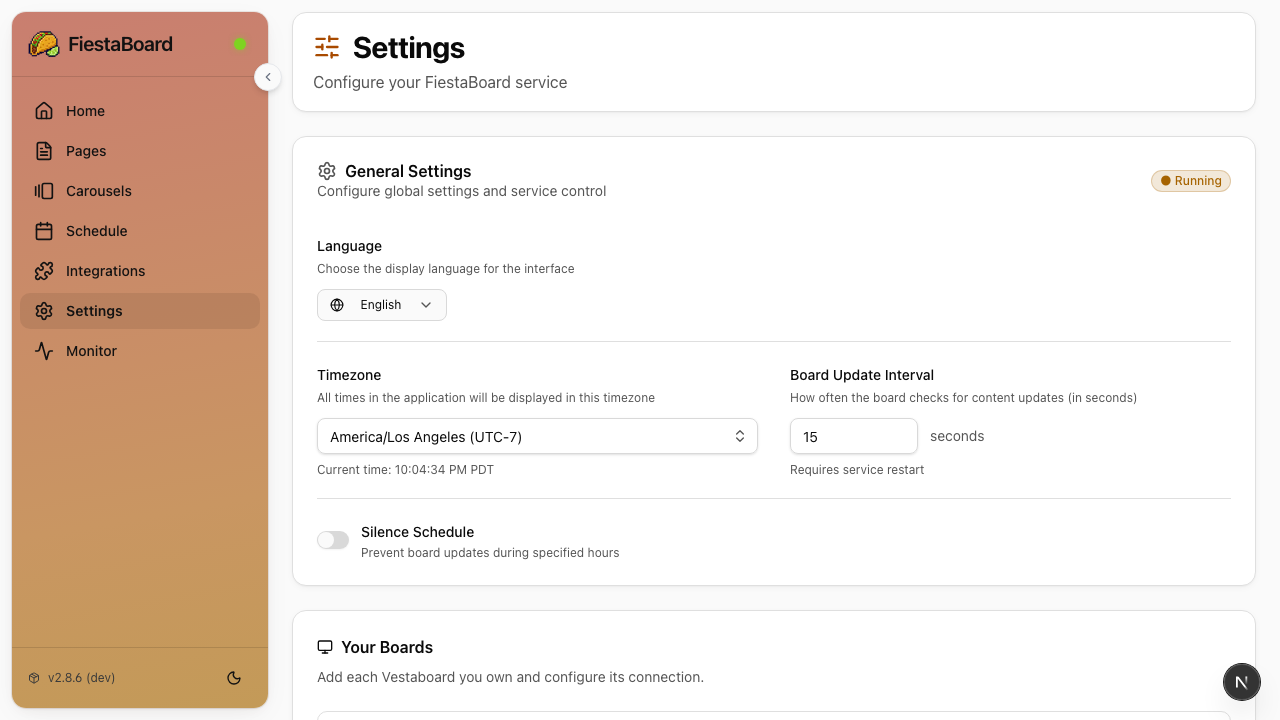
- Go to Settings
- Change the API mode to Cloud API
- Paste your Read/Write API key (settings save automatically)
Via .env (alternative):
BOARD_API_MODE=cloud
BOARD_READ_WRITE_KEY=your_cloud_api_key_here
Step 3: Restart FiestaBoard
docker-compose restart
Rate Limiting
The Cloud API has a rate limit of 1 message per 15 seconds. If you see rate limit errors, increase your refresh interval:
- Via Web UI: Go to Settings and increase the refresh interval to 30 seconds or higher
- Via
.env: SetREFRESH_INTERVAL_SECONDS=30(or higher)
Troubleshooting
401 Unauthorized
- Double-check your Read/Write API key in Settings
- Make sure the key is still active at web.vestaboard.com
- Verify there are no extra spaces or line breaks in the key
Rate Limit Errors
- Increase the refresh interval to 30 seconds or higher
- Avoid manually refreshing while automatic updates are running
Board Not Updating
- Verify Cloud is selected as the API mode in Settings
- Check that your API key is valid
- Check the logs:
docker-compose logs -f fiestaboard
Next Steps
- Docker Setup - Understanding the Docker architecture
- Environment Variables - All configuration options