Plugins Overview
FiestaBoard uses a plugin architecture to bring live data to your Vestaboard. Each data source is a self-contained plugin you can enable or disable independently. There are currently 26 built-in plugins, and many work without any API key.
FiestaBoard supports three ways to add plugins:
| Source | Description |
|---|---|
| Built-in | Plugins that ship with FiestaBoard in the plugins/ directory. These are always available. |
| Registry | Community plugins listed in the curated plugin-registry.json. They are installed from public git repositories that follow the fiestaboard-plugin--{name} naming convention. |
| Custom Git | Any public git repository can be installed as a plugin. Custom repos do not need to follow the naming convention. |
Enabling Plugins
All plugin management is done through the Web UI:
- Open http://localhost:4420
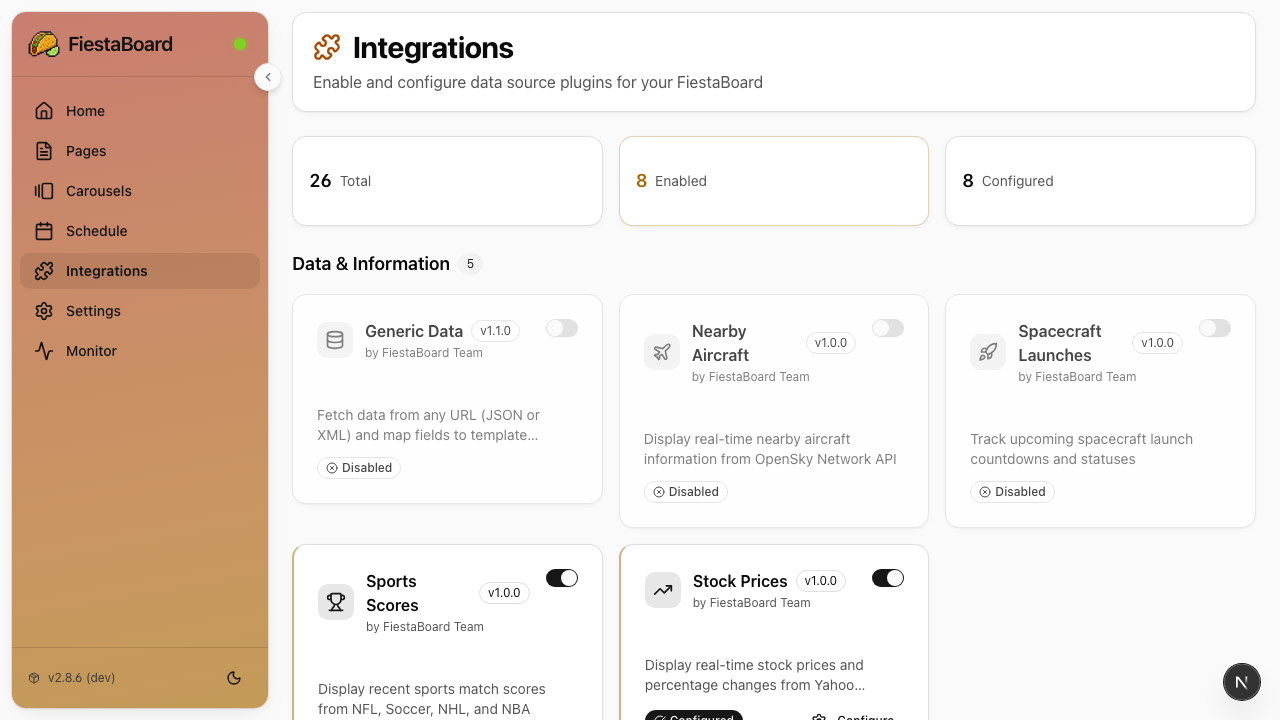
- Go to the Integrations page
- Toggle plugins on or off
- For plugins that need API keys, the Integrations page shows you where to get them and has fields to enter them
No API Key Required
These plugins work immediately after enabling - no registration or API keys needed:
| Plugin | What It Shows |
|---|---|
| Bay Wheels | Bike availability at Bay Area stations |
| Countdown | Time remaining until a target event |
| Dad Jokes | Random dad jokes from icanhazdadjoke |
| Date & Time | Current date and time in multiple formats (12h/24h, US/international) with timezone support |
| Disney Parks Queue Times | Live wait times for rides at Disney parks worldwide |
| Generic Data | Fetch data from any URL (JSON or XML) and map fields to template variables |
| Guest WiFi | Your WiFi network name and password for guests |
| Allergy & Health | Display allergy levels (pollen counts) and health risk indicators using Open-Meteo data |
| Santa Tracker | Track Santa's journey around the world on Christmas Eve |
| Spacecraft Launches | Track upcoming spacecraft launch countdowns and statuses |
| Star Trek Quotes | Random quotes from TNG, Voyager, and DS9 |
| Stardate | Current TNG-era stardate |
| Sun Art | Full-screen art pattern that changes with the sun's position throughout the day |
| Surf Conditions | Wave height, swell period, and quality ratings |
| Visual Clock | Large pixel-art style clock that fills the whole board |
| White Noise | Ambient rain/white noise effect with cascading tiles |
Free API Key Required
These plugins need a free API key from an external service:
| Plugin | What It Shows | Where to Get the Key |
|---|---|---|
| Weather | Temperature, UV index, precipitation, high/low, sunset | weatherapi.com (1M calls/month free) or openweathermap.org |
| Muni Transit | Real-time SF Muni arrival predictions | 511.org (free) |
| WSDOT Ferries | WA State ferry schedules, vessel names, car spots, and alerts | wsdot.wa.gov/traffic/api (free) |
| Last.fm Now Playing | Currently playing music via Last.fm scrobbling | last.fm/api (free) |
Free Tier API Key Required
These plugins need an API key from a service with a generous free tier:
| Plugin | What It Shows | Where to Get the Key | Free Tier |
|---|---|---|---|
| Traffic | Travel time to destinations with live traffic | Google Cloud Console (Routes API) | $200/month credit |
| Home Assistant | Smart home status (doors, garage, locks, etc.) | Your Home Assistant instance | Self-hosted |
| Air Quality & Fog | AQI and fog conditions | PurpleAir or OpenWeatherMap | Varies |
Optional API Key
These plugins work without an API key but offer additional features with one:
| Plugin | Without API Key | With API Key |
|---|---|---|
| Stocks | Monitor stock prices with color-coded indicators | Better symbol search/autocomplete (finnhub.io) |
| Sports Scores | NFL, Soccer, NHL, NBA match scores | Extended data (thesportsdb.com) |
| Nearby Aircraft | Real-time aircraft info from OpenSky Network | Higher rate limits (opensky-network.org) |
Using Plugin Data in Pages
Once a plugin is enabled, its data becomes available as template variables in the page editor:
- Create or edit a page in the Pages section
- Click the Variables button in the editor toolbar
- Browse variables grouped by plugin
- Click a variable to insert it at the cursor position
Variables look like {{weather.temperature}} or {{date_time.datetime}} and are automatically replaced with live data when the page is displayed.
For more details, see Plugin Configuration.
Creating Your Own Plugins
Want to add a data source that isn't built in? Check out the Plugin Development Guide to learn how to create custom plugins.
Installing External Plugins
External plugins can be installed from the plugin registry or from any public git repository.
From the Registry
The plugin registry is a curated list of community plugins maintained in the FiestaBoard repository. Browse available plugins and install them through the API:
# List all registry plugins
curl http://localhost:4420/api/plugins/registry

# Install a registry plugin
curl -X POST http://localhost:4420/api/plugins/registry/my_plugin/install
Registry plugins must follow the fiestaboard-plugin--{name} repository naming convention. This ensures they are easy to identify and maintain.
From a Git Repository
You can install any public git repository as a plugin. Only HTTPS URLs are accepted for security. Custom repositories do not need to follow the naming convention:
# Install from a git URL
curl -X POST http://localhost:4420/api/plugins/install \
  -H "Content-Type: application/json" \
  -d '{"repository": "https://github.com/someone/my-custom-plugin"}'

# Install with a specific branch
curl -X POST http://localhost:4420/api/plugins/install \
  -H "Content-Type: application/json" \
  -d '{"repository": "https://github.com/someone/my-custom-plugin", "branch": "main"}'
Uninstalling External Plugins
External plugins can be removed when no longer needed. Built-in plugins cannot be uninstalled.
curl -X DELETE http://localhost:4420/api/plugins/my_plugin/uninstall
External plugins are cloned into the external_plugins/ directory and persist across container restarts.