Plugin Configuration
This guide covers how to enable, configure, and use FiestaBoard plugins.
Enabling Plugins via the Web UI
The web UI is the recommended way to manage plugins:
- Open http://localhost:4420
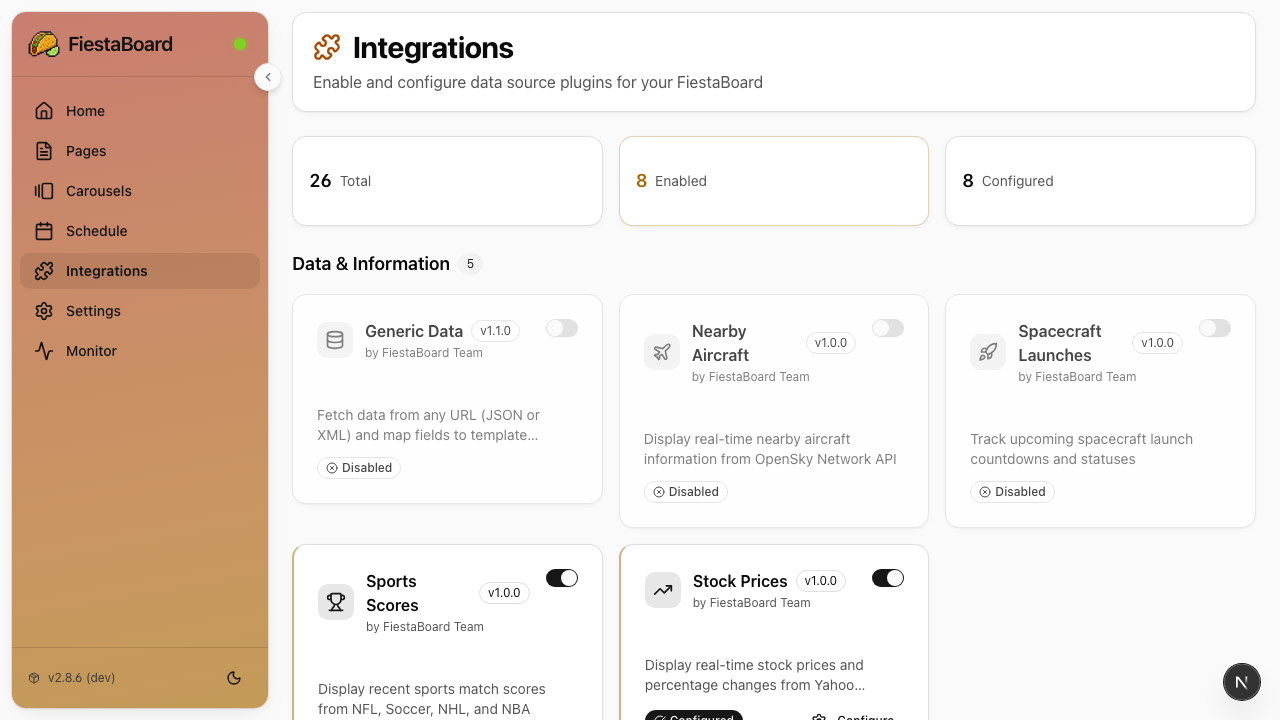
- Go to the Integrations page
- Toggle plugins on or off
- Click on a plugin to open its settings (API keys, locations, preferences, etc.)
- Settings are saved automatically and persist across restarts
The Integrations page shows setup instructions for each plugin that needs an API key. You don't need to look anything up separately.
Using Plugin Data in Pages
Once a plugin is enabled, its data becomes available as template variables in the page editor.
Inserting Variables
- Create or edit a page in the Pages section
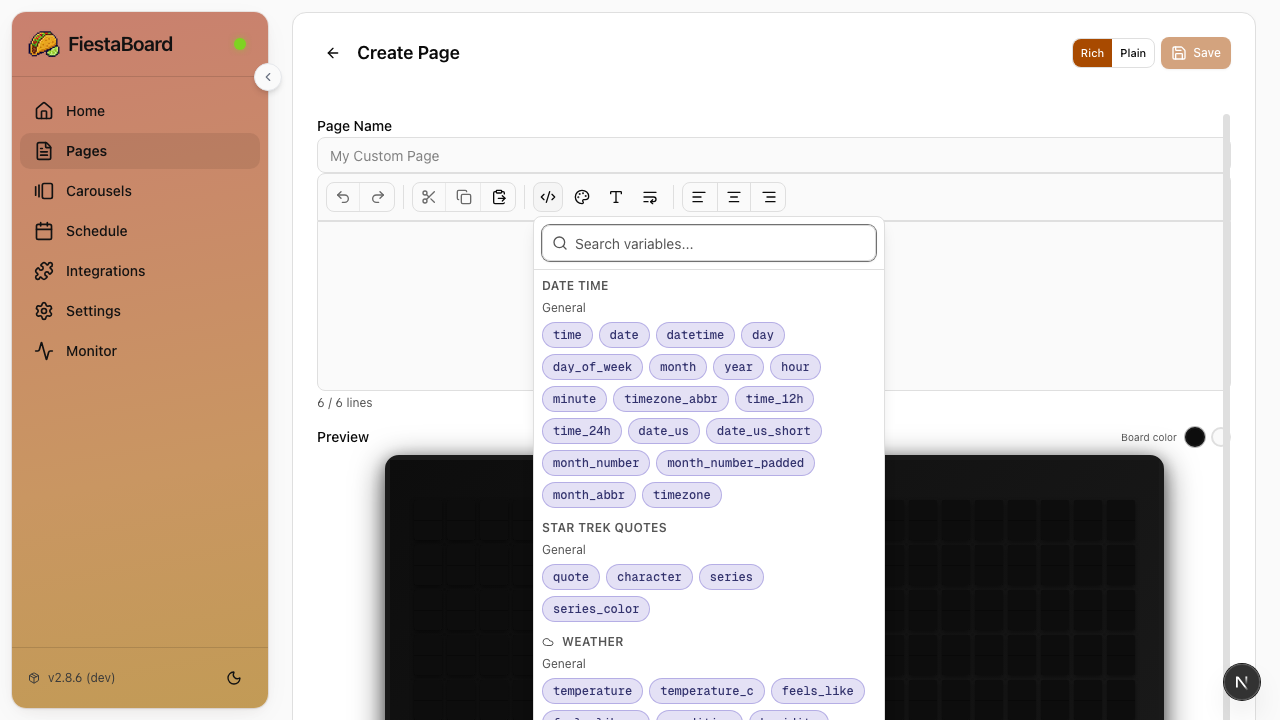
- Click the Variables button in the editor toolbar
- Browse variables grouped by plugin
- Click a variable to insert it at the cursor position
Variable Format
Variables use the format {plugin_name.variable_name}:
Temperature: {weather.temperature}
Conditions:  {weather.condition}
When the page is displayed on your board, these are replaced with live data (e.g., 72*F and SUNNY).
Full-Screen Variables
Some plugins provide variables that fill the entire board:
{visual_clock.display}    → Fills all rows with a large clock
{sun_art.display}         → Fills all rows with sun art
Multi-Line Variables
Some plugins provide array variables that expand into multiple lines:
{stocks.prices}    → Multiple rows of stock data
{muni.formatted}   → Multiple rows of transit arrivals
Alternative: Environment Variables
Most plugins also support configuration via environment variables in your .env file. This is useful for:
- Automated deployments where you want all config in one place
- Docker setups where
.envis managed by your orchestration tool
Web UI settings take priority over environment variables. If a setting is configured in both places, the web UI value is used.
See the Environment Variables Reference for the full list of plugin-related variables.
Alternative: Plugin API
You can also manage plugins programmatically:
# Enable a plugin
curl -X POST http://localhost:4420/api/plugins/weather/enable

# Disable a plugin
curl -X POST http://localhost:4420/api/plugins/weather/disable

# Get plugin details and configuration
curl http://localhost:4420/api/plugins/weather

# Update plugin configuration
curl -X PUT http://localhost:4420/api/plugins/weather/config \
  -H "Content-Type: application/json" \
  -d '{"location": "San Francisco, CA"}'

# Get all available variables from a plugin
curl http://localhost:4420/api/plugins/weather/variables

# List all plugins and their status
curl http://localhost:4420/api/plugins
Next Steps
- Plugins Overview - See all available plugins and what they need
- Page Editor - Use plugin data in your pages
- Plugin Development Guide - Create custom plugins