Page Editor
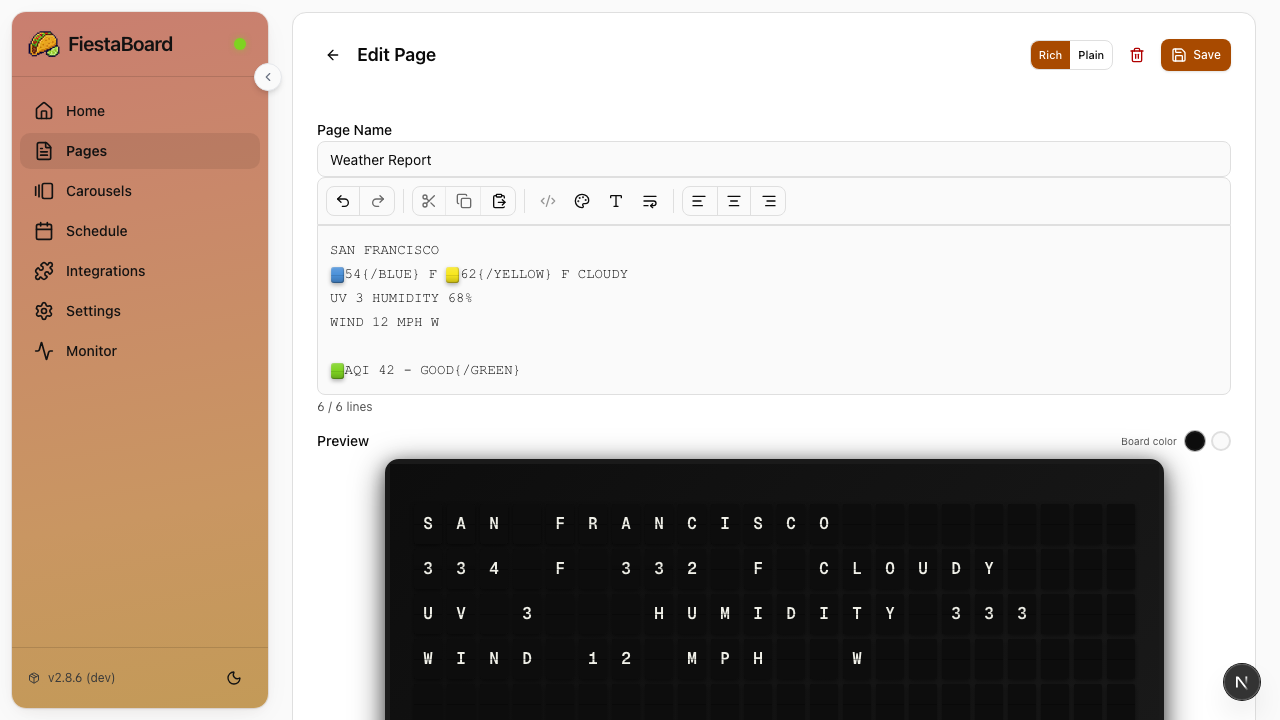
FiestaBoard's WYSIWYG page editor lets you create and edit board display pages with a visual editor that shows exactly how content will appear on your split-flap display.
Overview
The page editor is the core of FiestaBoard's content creation experience. It provides a real-time preview of your board layout, template variable insertion, and color formatting, all in a visual interface.
Device Types
FiestaBoard supports multiple Vestaboard devices with different display sizes:
| Device | Dimensions | Total Characters |
|---|---|---|
| Flagship | 6 rows × 22 columns | 132 |
| Note | 3 rows × 15 columns | 45 |
Pages are device-specific. The Pages section has Flagship and Note tabs to organize pages by device type. The editor and live preview automatically adapt to the selected device's dimensions.
The Vestaboard Note supports a heart character (❤) at code 62, which displays as a degree symbol (°) on the Flagship.
Creating a New Page
- Open the FiestaBoard Web UI at
http://localhost:4420 - Navigate to the Pages section
- Select the Flagship or Note tab for your target device
- Click New
- Give your page a name
- Use the editor to compose your content (dimensions match your target device)
- Click Save
Using Template Variables
Template variables let you insert live data from your enabled plugins into any page. Variables are automatically replaced with real-time data when the page is displayed.
Inserting Variables
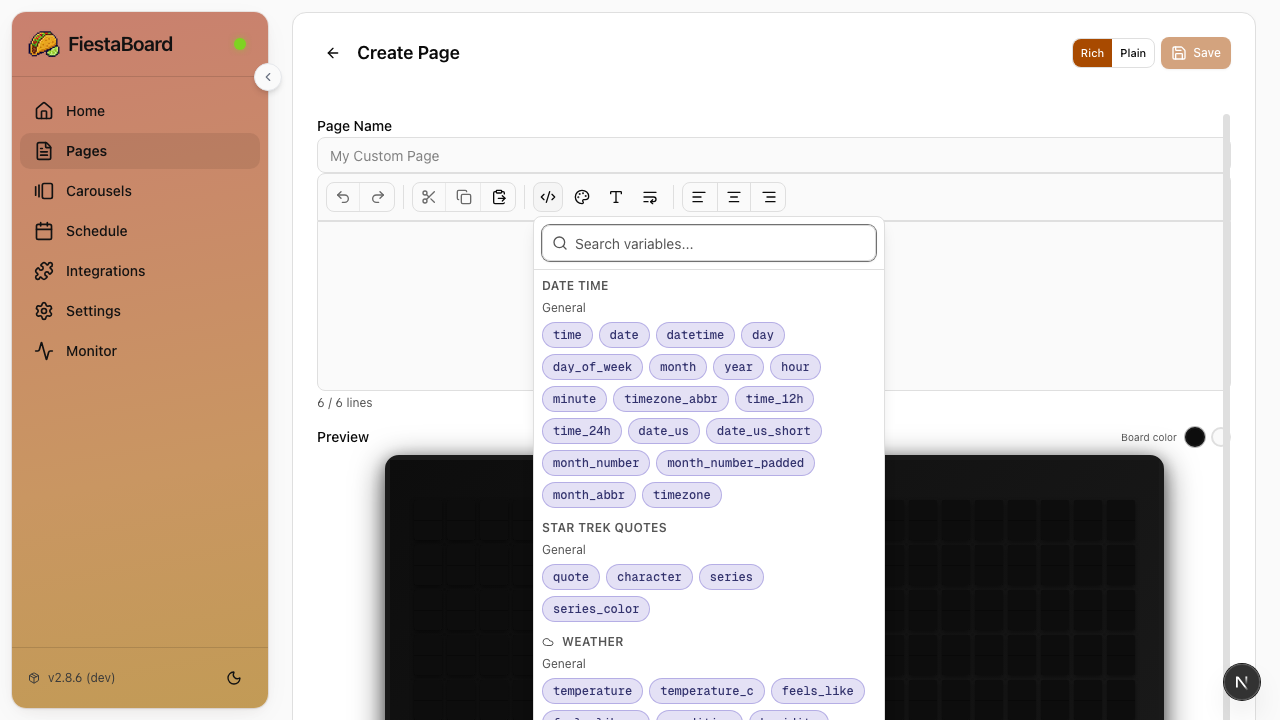
- In the page editor, click the Variables button
- Browse available variables grouped by plugin
- Click a variable to insert it at the cursor position
Variable Types
| Type | Description | Example |
|---|---|---|
| Simple | Single value replacement | {weather.temperature} → 72°F |
| Array | Multi-line data | {stocks.prices} → formatted stock rows |
Example Variables
Here are some commonly used template variables:
{weather.temperature}- Current temperature{weather.condition}- Weather conditions (Sunny, Cloudy, etc.){stocks.prices}- Stock price display{date_time.datetime}- Current date and time{muni.formatted}- Transit arrival times
Working with Colors
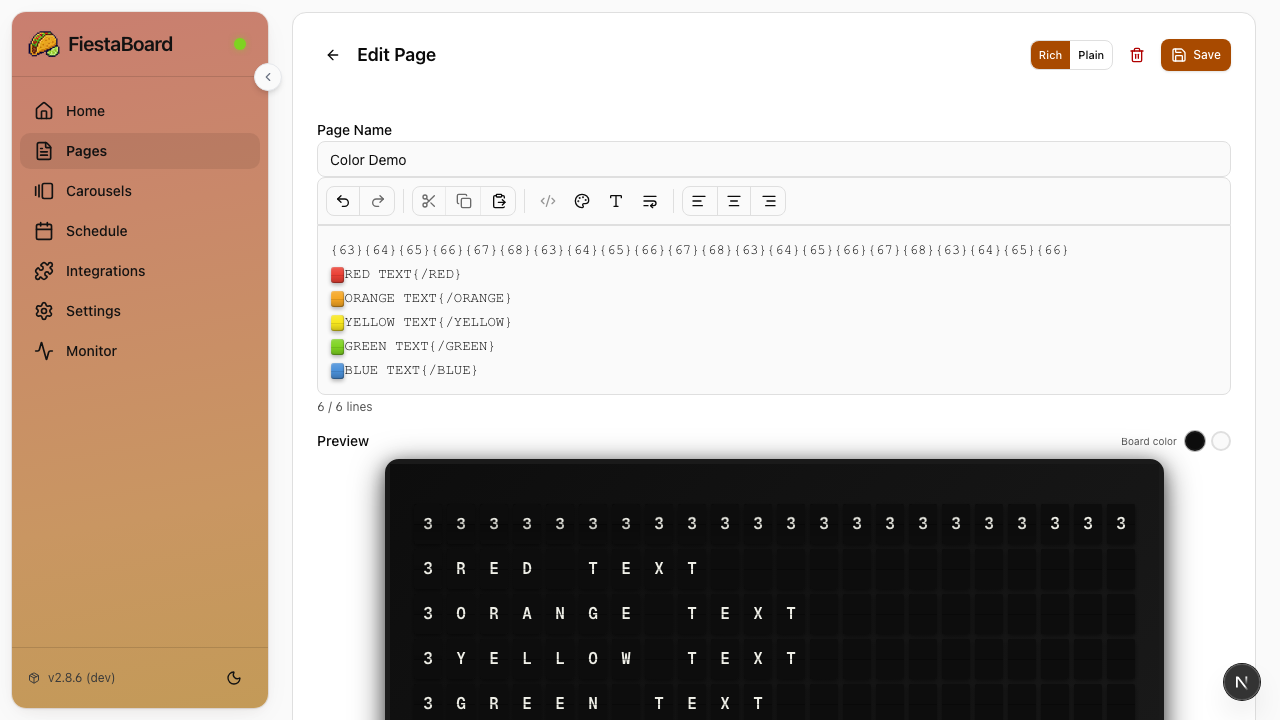
The split-flap display supports colored tiles using special character codes. You can use these in the editor to add visual emphasis to your pages.
| Code | Color | Common Use |
|---|---|---|
{63} | 🟥 Red | Alerts, high temperatures |
{64} | 🟧 Orange | Warm temperatures |
{65} | 🟨 Yellow | Comfortable, warnings |
{66} | 🟩 Green | Good status, success |
{67} | 🟦 Blue | Cold temperatures, info |
{68} | 🟪 Violet | Very cold, accents |
{69} | ⬜ White | Backgrounds |
{70} | ⬛ Black | Backgrounds |
See the Color Guide for detailed usage examples.
Page Layout
The board display dimensions depend on the target device:
- Flagship: 6 rows × 22 columns (132 characters)
- Note: 3 rows × 15 columns (45 characters)
The editor reflects the target device's layout so you can see exactly how your content will be positioned.
Tips for Good Layouts
- Keep text concise - You have limited characters per row (22 for Flagship, 15 for Note)
- Use alignment - Center important information for readability
- Mix data sources - Combine multiple plugin variables on one page
- Test with preview - Use the live preview to check formatting before saving
- Design per device - Create separate pages optimized for each device's dimensions
Managing Pages
Editing Existing Pages
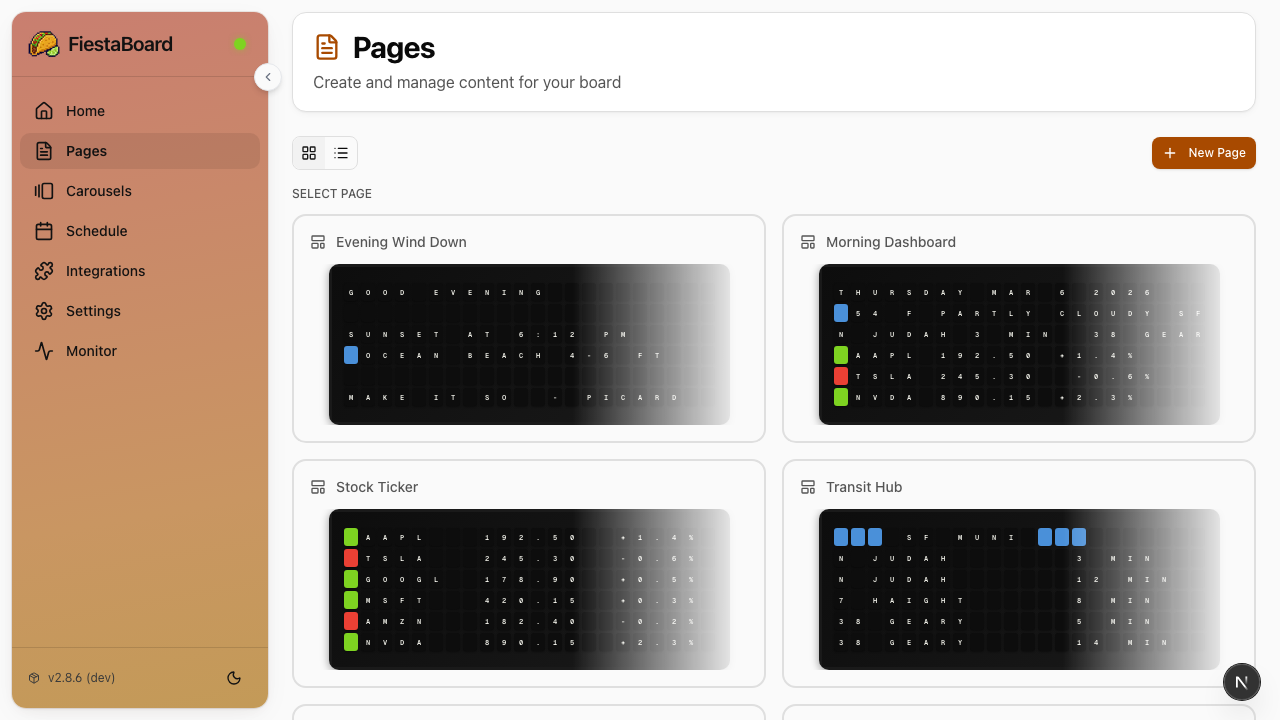
- Go to the Pages section
- Click on any page to open it in the editor
- Make your changes
- Click Save
Deleting Pages
- Go to the Pages section
- Click the delete option on the page you want to remove
- Confirm the deletion
Pages that are referenced in schedules should be updated or removed from the schedule before deleting.
Next Steps
- Schedule Mode - Automate when pages are displayed
- Plugins Overview - See available data sources for your pages
- Color Guide - Learn about color formatting options