Page Editor
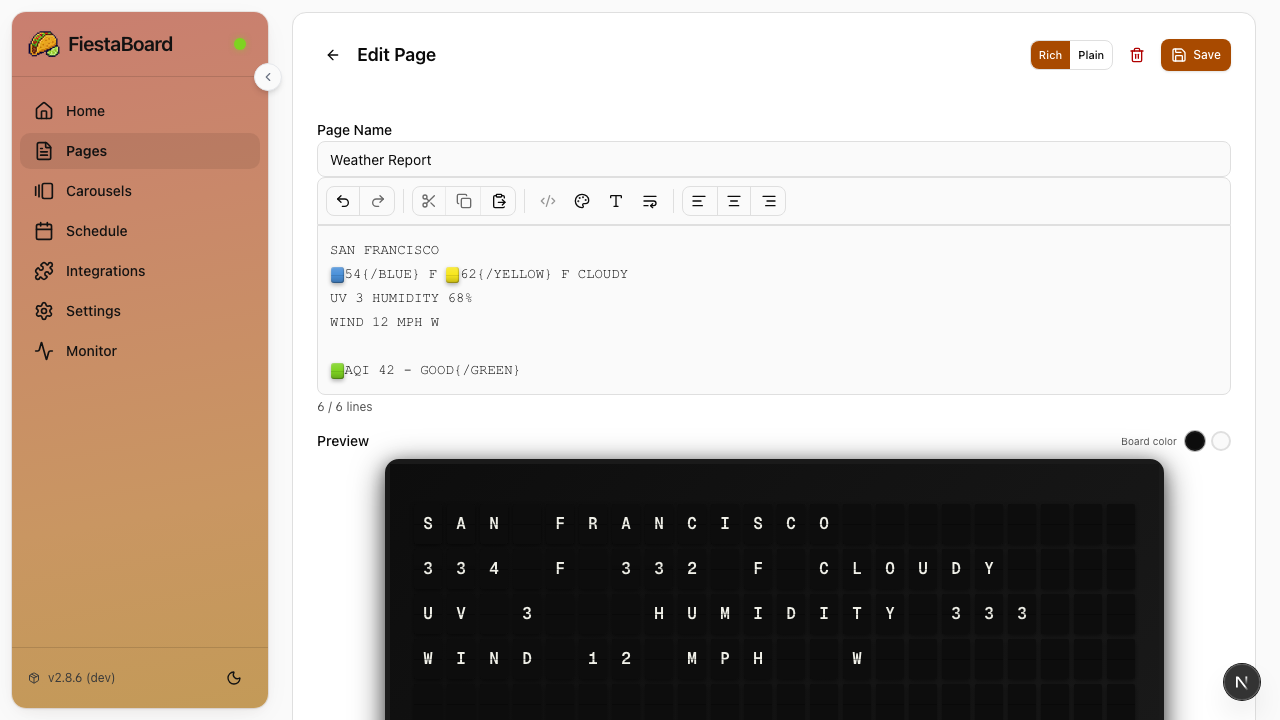
FiestaBoard's WYSIWYG page editor lets you create and edit board display pages with a visual editor that shows exactly how content will appear on your split-flap display.
Overview
The page editor is the core of FiestaBoard's content creation experience. It provides a real-time preview of your board layout, template variable insertion, and color formatting, all in a visual interface.
Device Types
FiestaBoard supports multiple Vestaboard devices with different display sizes:
| Device | Dimensions | Total Characters |
|---|---|---|
| Flagship | 6 rows × 22 columns | 132 |
| Note | 3 rows × 15 columns | 45 |
Pages are device-specific. The Pages section has Flagship and Note tabs to organize pages by device type. The editor and live preview automatically adapt to the selected device's dimensions.
The Vestaboard Note supports a heart character (❤) at code 62, which displays as a degree symbol (°) on the Flagship.
Creating a New Page
- Open the FiestaBoard Web UI at
http://localhost:4420 - Navigate to the Pages section
- Select the Flagship or Note tab for your target device
- Click New
- Give your page a name
- Use the editor to compose your content (dimensions match your target device)
- Click Save
Using Template Variables
Template variables let you insert live data from your enabled plugins into any page. Variables are automatically replaced with real-time data when the page is displayed.
Inserting Variables
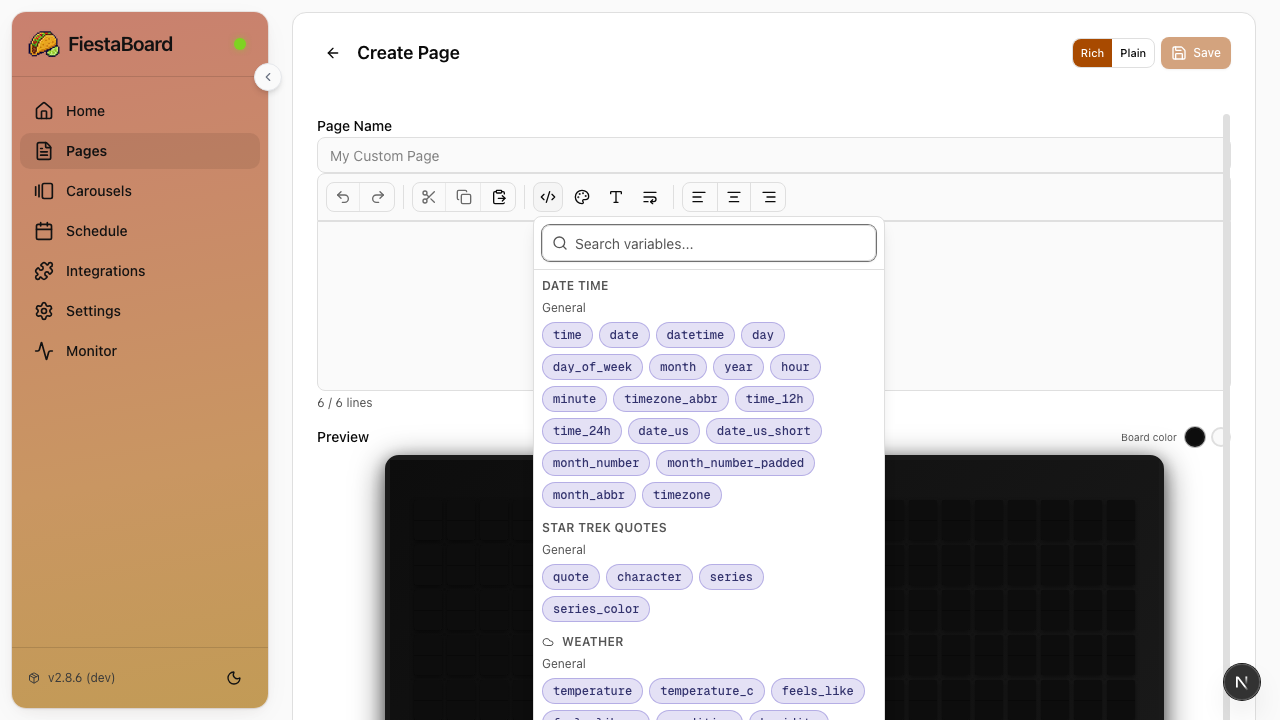
- In the page editor, click the Variables button
- Browse available variables grouped by plugin
- Click a variable to insert it at the cursor position
Variable Types
| Type | Description | Example |
|---|---|---|
| Simple | Single value replacement | {weather.temperature} → 72°F |
| Array | Multi-line data | {stocks.prices} → formatted stock rows |
Example Variables
Here are some commonly used template variables:
{weather.temperature}- Current temperature{weather.condition}- Weather conditions (Sunny, Cloudy, etc.){stocks.prices}- Stock price display{date_time.datetime}- Current date and time{muni.formatted}- Transit arrival times
Inline Formulas ({{= ... }})
For anything beyond a plain value — IF / ELSE, comparisons, math, string
manipulation, conditional colors — FiestaBoard supports an Excel-style
formula language inside {{= ... }} blocks:
{{= IF(weather.temperature > 80, "HOT", "OK") }}
{{= IF(stocks.AAPL.change >= 0, COLOR("green"), COLOR("red")) }} AAPL
See the Template Formulas reference for the complete syntax, function list, and recipes.
AI Assistant (optional)
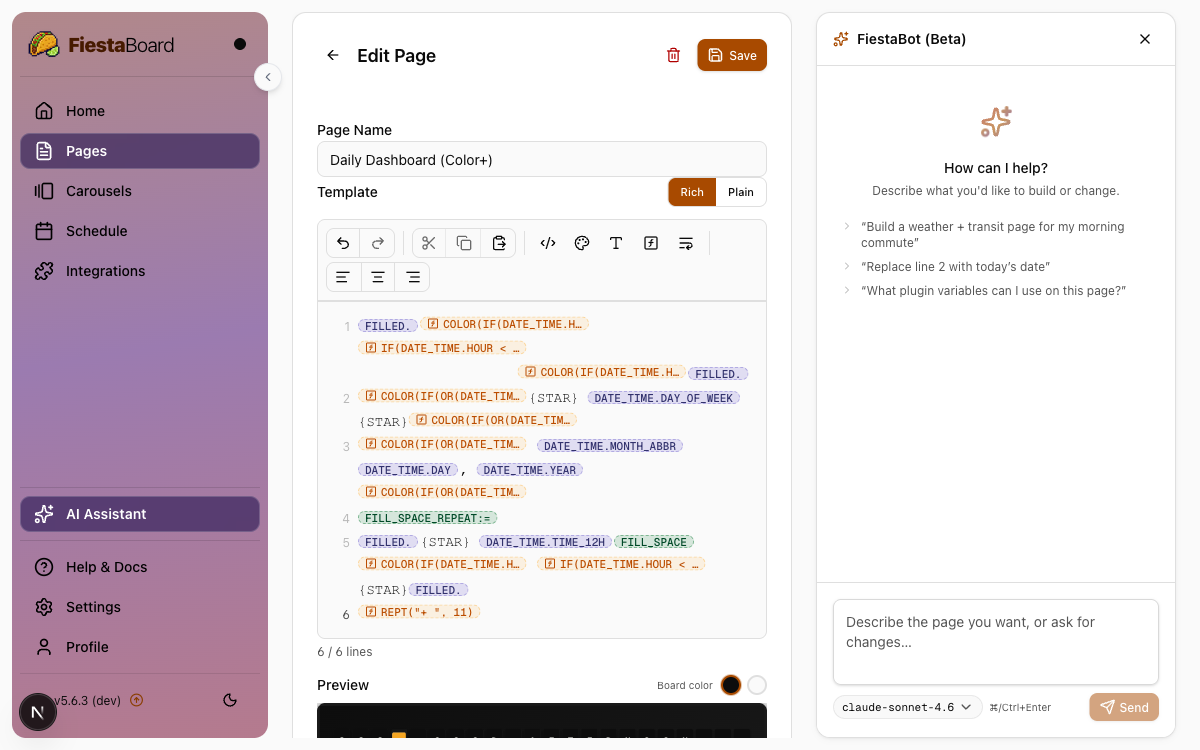
FiestaBoard includes FiestaBot, an AI chat assistant that can draft and edit board pages through natural conversation. Click AI Assistant in the sidebar (the Sparkles icon) to open the panel.
FiestaBoard ships without any bundled LLM credentials. You bring your own provider, your own API key, and your own model list. Two wire-format protocols are supported out of the box:
- OpenAI-compatible chat completions — works with OpenRouter, OpenAI, Groq, DeepSeek, Mistral, Together AI, Fireworks AI, Ollama, LM Studio, vLLM, llama.cpp, and most other local servers.
- Anthropic Messages API — direct Claude access via
api.anthropic.com.
How it works
- Click AI Assistant in the sidebar to open the FiestaBot panel.
- Type a description of what you want — for example, "Build a weather and transit page for my morning commute" or "Replace line 2 with today's date".
- FiestaBot edits your page in the editor directly. You can see each change applied in real time.
- Continue the conversation to refine the result, ask questions, or request a completely different layout.
- Click Save when you're happy — FiestaBot never saves a page without you confirming.
When a page is open in the editor, FiestaBot automatically has context of what you're working on — no need to attach anything manually. The panel is also available from any other section of the app, where it can answer questions about plugins, variables, and FiestaBoard features.
What FiestaBot can do
- Create and edit pages — draft full template layouts or make targeted edits (change a line, add a variable, adjust alignment).
- Suggest variables — recommend which plugin variables to use for a given goal and explain what they do.
- Install plugins — recommend and install a plugin from the registry when it's needed for what you're building (requires your confirmation).
- Configure settings — update display, polling, or silence schedule settings on your behalf (requires your confirmation).
- Create and edit schedules and carousels — build automation around the pages you create (requires your confirmation).
Setup
The AI Assistant item only appears in the sidebar after you've configured at least one provider in Settings → AI Providers. See the AI Providers setup guide for the full walkthrough, recommended models, and a privacy note covering exactly what FiestaBoard sends to your provider.
Working with Colors
The split-flap display supports colored tiles using special character codes. You can use these in the editor to add visual emphasis to your pages.
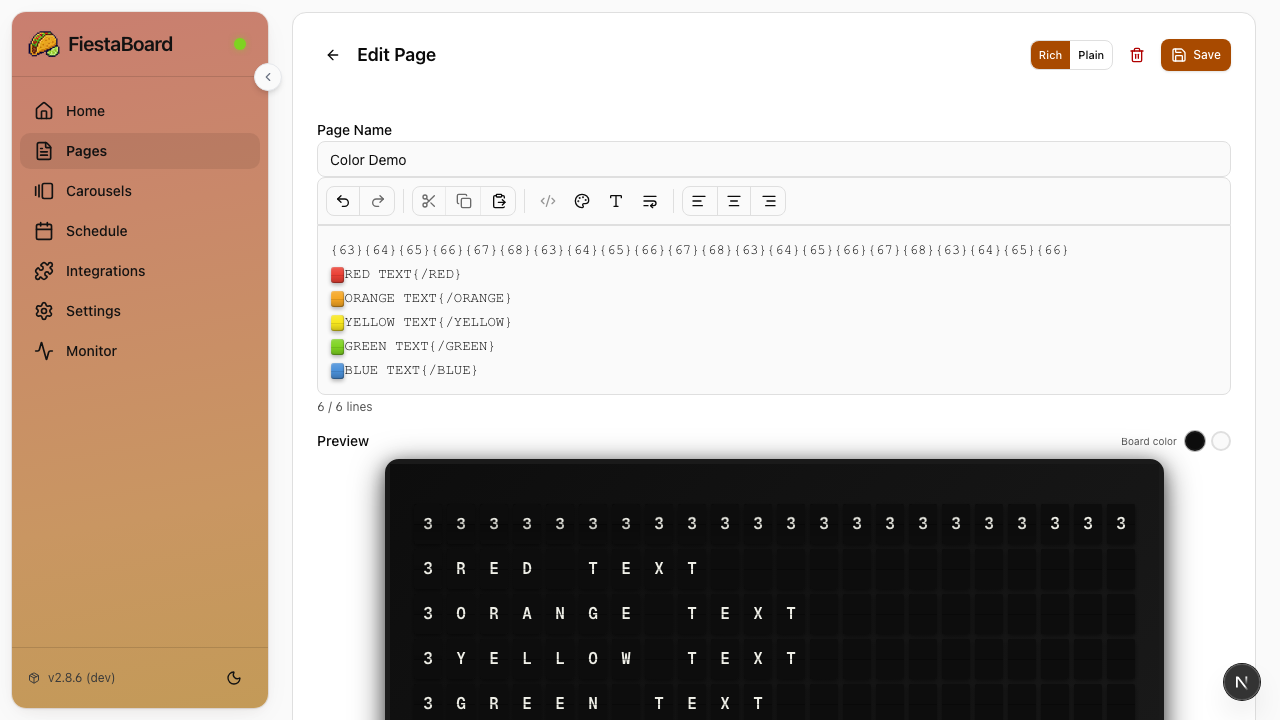
| Code | Color | Common Use |
|---|---|---|
{63} | 🟥 Red | Alerts, high temperatures |
{64} | 🟧 Orange | Warm temperatures |
{65} | 🟨 Yellow | Comfortable, warnings |
{66} | 🟩 Green | Good status, success |
{67} | 🟦 Blue | Cold temperatures, info |
{68} | 🟪 Violet | Very cold, accents |
{69} | ⬜ White | Backgrounds |
{70} | ⬛ Black | Backgrounds |
See the Color Guide for detailed usage examples.
Page Layout
The board display dimensions depend on the target device:
- Flagship: 6 rows × 22 columns (132 characters)
- Note: 3 rows × 15 columns (45 characters)
The editor reflects the target device's layout so you can see exactly how your content will be positioned.
Tips for Good Layouts
- Keep text concise - You have limited characters per row (22 for Flagship, 15 for Note)
- Use alignment - Center important information for readability
- Mix data sources - Combine multiple plugin variables on one page
- Test with preview - Use the live preview to check formatting before saving
- Design per device - Create separate pages optimized for each device's dimensions
Managing Pages
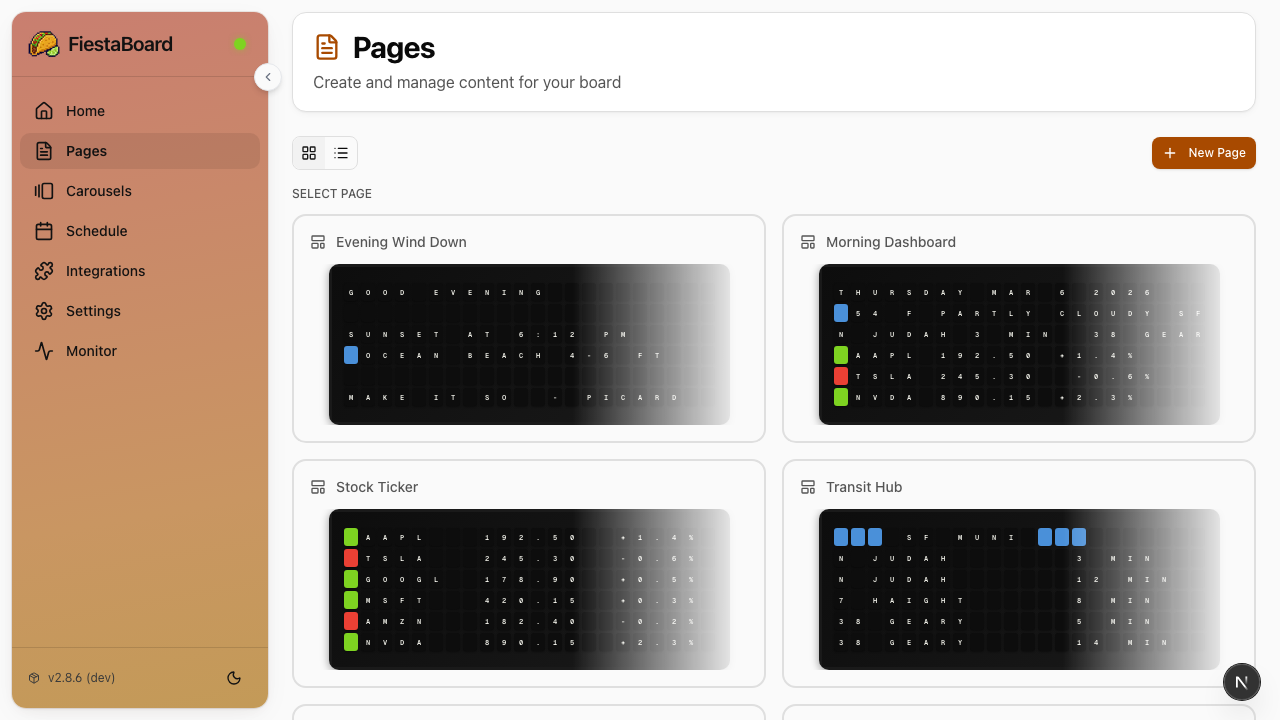
Editing Existing Pages
- Go to the Pages section
- Click on any page to open it in the editor
- Make your changes
- Click Save
Deleting Pages
- Go to the Pages section
- Click the delete option on the page you want to remove
- Confirm the deletion
Pages that are referenced in schedules should be updated or removed from the schedule before deleting.
Next Steps
- Schedule Mode - Automate when pages are displayed
- Plugins Overview - See available data sources for your pages
- Color Guide - Learn about color formatting options